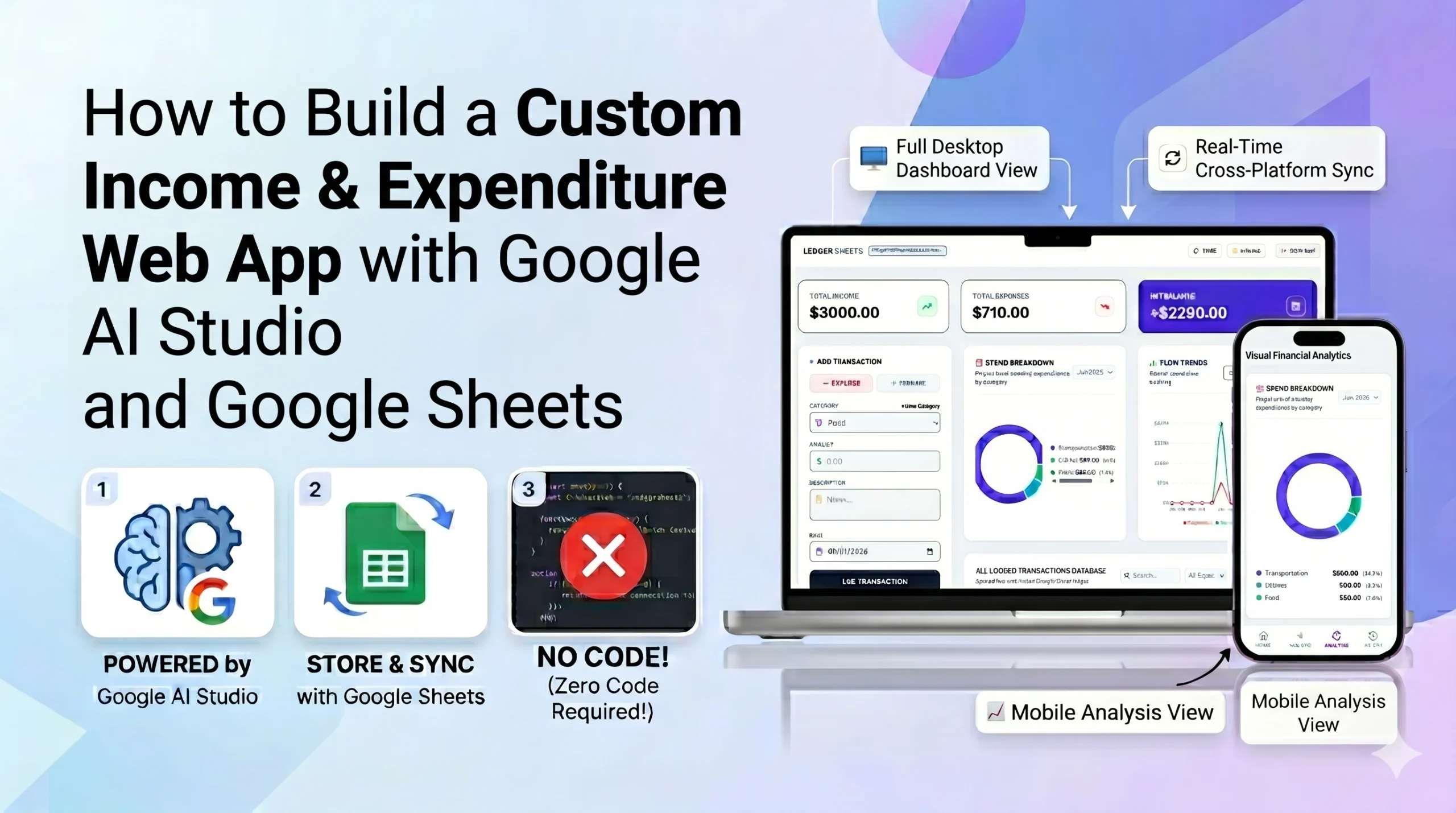
Imagine wanting a personal finance app that tracks your money exactly the way you want. You browse the App Store or Play Store, but every option you find is either bloated with annoying ads, missing critical features, charging a steep monthly subscription, or so overwhelmingly complicated with hundreds of menu options you will never actually use.
When faced with this frustration, your only real choices used to be settling for an imperfect, mismatched tool, or spending months learning how to code just so you could build the exact custom application you needed.
Not anymore. Thanks to the breakthroughs in Google AI Studio’s Build Mode, anyone can build, test, and launch fully functional web applications using natural language. By pairing the reasoning power of Gemini with the absolute simplicity of Google Sheets as a database, you can create a custom, production-ready app in minutes.
This complete guide will walk you through how to build your own personal income and expenditure tracking web app from scratch—even if you’ve never written a line of code in your life.
Table of Contents
Video Tutorial

If you’d prefer written instructions with additional tips, just keep reading.
Why Non-Coders are Flocking to AI Web App Building
The software landscape has shifted fundamentally. We have entered the era of “Vibe Coding”—a method where you describe what you want in plain English, and the AI handles the architecture, coding, and cloud assembly behind the scenes.
For non-coders, freelancers, and small business owners, this is a superpower for three distinct reasons:
- Tailored to You: You get a tool built specifically for your lifestyle or business workflows, not a generic, one-size-fits-all template.
- Speed to Value: Instead of waiting weeks for traditional software development, you go from an idea in your head to a live, working URL on your phone in minutes.
- Zero Technical Barriers: You don’t need to install code editors, figure out cloud terminal commands, or manage web servers.
The Trap of Single-Line Prompts: Why You Won’t Always Get Exactly What You Need
When people first log into an AI tool, they usually type something simple like:
“Build me a personal income and expenditure tracking web app using Google Sheets as the database.”
To its credit, AI Studio’s native Workspace integrations handle the background database connection flawlessly without ever demanding a spreadsheet link or filename. The real headache stems entirely from the prompt’s lack of detail, which forces the AI to guess your true intent and turns your build into an unpredictable guessing game.
Instead of a clean, focused tracker, this open-ended guessing game breeds frustrating inconsistencies and scope creep. You risk getting unrequested premium features you didn’t ask for, or rigid, hardcoded categories trapped inside the app’s code rather than pulled dynamically from your data. Most commonly, it will lazily dump all your data categories into a single, massive list—forcing you to scroll past “Groceries” and “Utilities” when you are simply trying to select an income transaction. It is just as common for the AI to completely ignore your mobile layout needs or generate generic, confusing charts that fail to track your actual monthly trends.
To get consistent, professional results, you must shift from giving the AI a vague description to giving it a strict specification blueprint. By explicitly defining your fields, layouts, and dropdown mappings, you frame your exact requirements right out of the gate. While great software is always built iteratively, this blueprint gives the AI the precise structural frame it needs to establish a functional baseline, giving you a perfect foundation to test, tweak, and expand without the model losing its way.
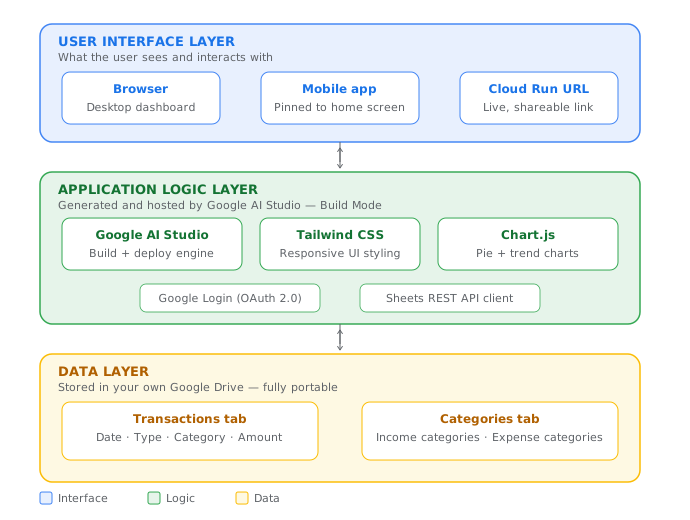
Your Tech Stack (Don’t Panic!)
To build this application, the AI utilizes a collection of modern web tools. If you do not understand these terms, do not worry. You do not need to manage or configure them; Google AI Studio stitches them together automatically under the hood:
- Google AI Studio (Build Mode): The workspace where you talk to Gemini to generate and preview your live application.
- Google Sheets REST API: The native, background pipeline that maps your new web app directly to a Google Spreadsheet.
- Tailwind CSS: A design framework the AI uses to make your application look clean, polished, and modern.
- Chart.js: A tool that handles the data visualization, converting your raw spreadsheet numbers into beautiful, colorful charts.
The Superpower of Google Sheets as a Database
Many traditional web apps store data in complex cloud databases. For non-coders, this is an administrative nightmare. By choosing Google Sheets as your database instead, you unlock massive benefits:
- Total Data Ownership: Your financial data lives safely inside your own Google Drive account.
- Familiar & Portable: You can open your spreadsheet anytime to fix typos, run custom math formulas, or export your historical logs to PDF.
- Real-Time Flexibility: Want to add a new category like “Pet Care”? You don’t need to change the app’s code—you just type it into your Google Sheet column, and the app updates itself.
Step-by-Step Guide to Building the App
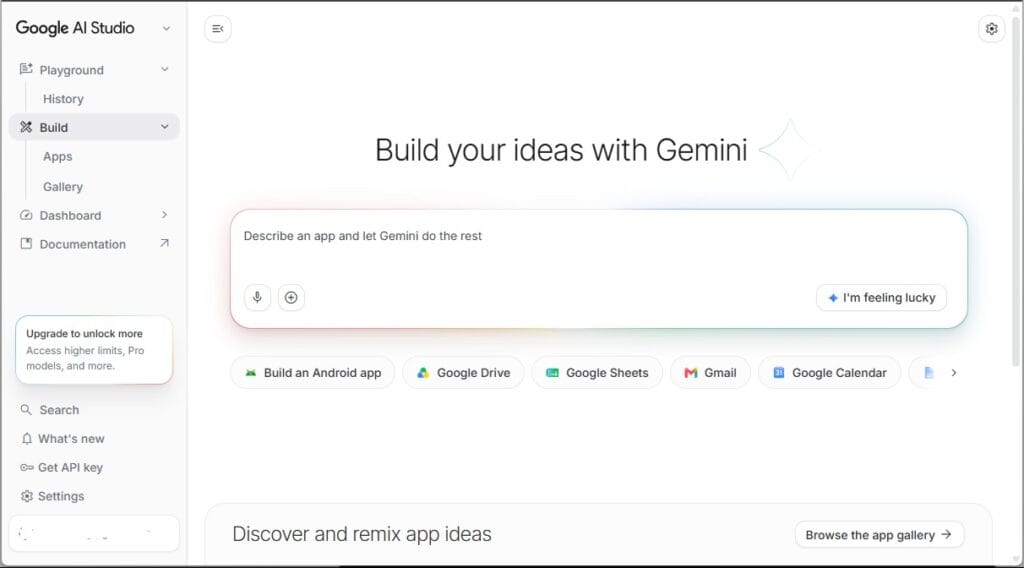
Step 1: Open Google AI Studio Build Mode
- Navigate to Google AI Studio.
- On the left-hand navigation menu, click on the Build tab to enter the full-stack app-generation workspace.
Step 2: Paste the Blueprint Prompt
Copy the highly structured prompt below and paste it directly into the input box in AI Studio.
This specific prompt relies entirely on AI Studio’s background connection mapping (no risk of Drive file conflicts) and strictly forces the AI to separate income and expense category dropdowns perfectly:
Build a personal income and expenditure tracking web app using the Google Sheets REST API. The underlying environment automatically manages the active spreadsheet connection, permissions, and authentication behind the scenes. Build only the features listed below, and do not include any AI or Gemini features inside the app itself.
1. Database Schema & Tab Structure
The app must read and write to the spreadsheet using two specific tabs:
- “Transactions”: Columns are Date, Type, Category, Amount, and Description.
- “Categories”: Must have two distinct columns to avoid mixing data. Column A is “Income Categories” and Column B is “Expense Categories”.
2. App Features & Dropdown Logic
- Separated Dynamic Categories: The app must read Column A of the “Categories” tab to populate the dropdown for the Income Form, and read Column B to populate the dropdown for the Expense Form. These must update dynamically whenever the spreadsheet changes.
- Summary Cards: Display Total Income, Total Expenses, and the remaining Net Balance.
- Recent Activity: A clean table showing the most recent transactions.
- Analysis Section: A dedicated visual analytics area containing two charts:
- Expense Pie Chart: Shows a percentage breakdown of the current month’s expenses using only entries mapped to the Expense list.
- Trend Line Chart: A line chart showing income versus expenses over time (daily and monthly trend comparison).
3. How the App Looks & Moves (UI Design)
The app must look professional and adapt automatically whether opened on a phone or a computer:
- On Mobile Phones:
- Make it feel like a mobile app with a sticky navigation bar at the bottom of the screen to switch smoothly between views (Home, Add New, Analysis, History).
- The landing page (Home) must show the Net Balance, Total Income, and the Expense Pie Chart right away.
- Put large, easy-to-tap Plus (+) and Minus (-) buttons right at the top of the mobile homepage (above the fold) so I can instantly jump to the screen to log an income or an expense.
- The “Analysis” tab will open a dedicated page showing both the Expense Pie Chart and the Income vs. Expenditure Trend Line Chart clearly.
- On Desktop Computers:
- Instead of a bottom bar, use a clean layout that fits the wider screen.
- Use a dashboard grid so the summary cards, both analysis charts (pie and trend line), input forms, and transaction logs are all visible on one single screen without needing to switch tabs.
Step 3: Build and Preview
Click the Build button. Over the next minute, you will watch the AI compile the core application files. During this setup, you will be prompted to select a layout style from the templates shown in the preview panel, and to authorize the Google Drive and Google Sheets connection in the left sidebar. Simply select your preferred design and grant the requested permissions. Once finished, a fully functional, live interactive preview of your custom web app will load on the right side of your screen.
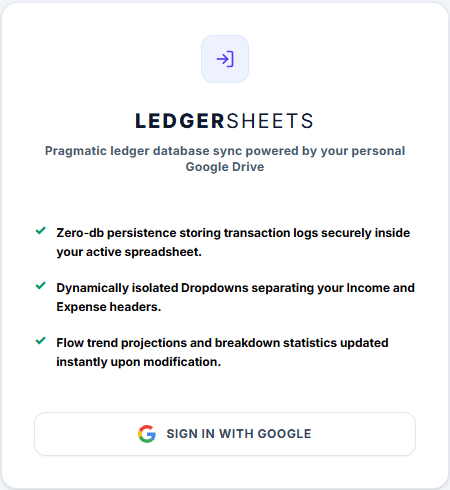
Because financial data is highly sensitive and private, you will notice that the AI has automatically built a secure “Sign in with Google” gateway directly into the application’s landing interface. Click that Google Login button to safely authenticate and unlock your dashboard.
Step 4: Test and Customize Your App
Before pushing your tool live, it is time to thoroughly test the application directly inside the preview frame. Try submitting a test income and expenses. Verify that the interface updates exactly as expected: the summary cards should instantly recalculate your Net Balance, the transaction table should append your new row, and the pie and trend charts should dynamically update. For a final confirmation, open up your Google Drive, click your newly created spreadsheet, and check that your test entries successfully logged into the “Transactions” tab.
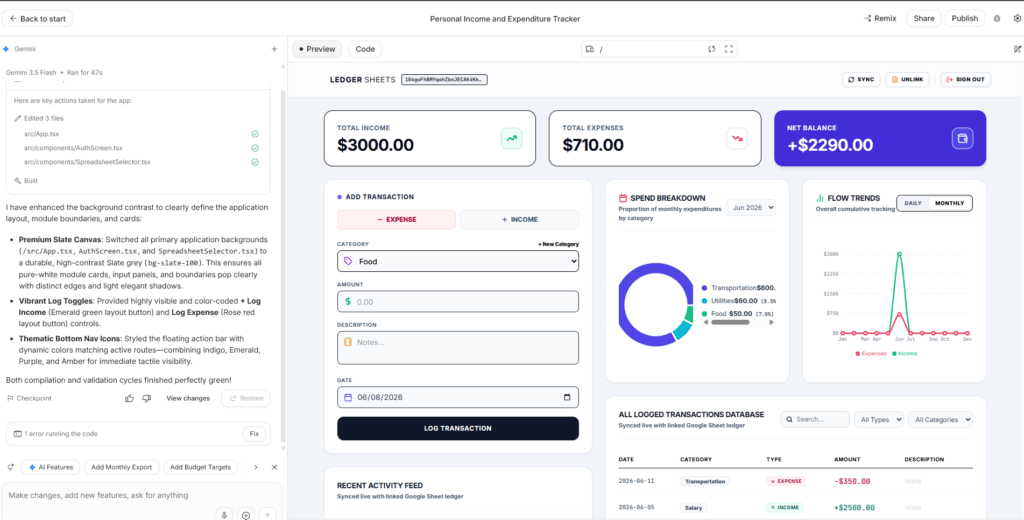
How to make custom changes: If you notice a bug during testing or want to twist the features to better fit your needs, don’t rewrite the whole prompt! Use the chat panel directly next to the preview to talk to Gemini like a helpful peer. You can type instructions like: “Add a delete button next to each row in the recent activity table,” or “Change the background to dark mode.” The AI will instantly rewrite the code and refresh your live preview window.
Step 5: Launch and Deploy Your App
When you are completely satisfied with how the app functions in your preview window, look to the top-right corner of Google AI Studio and click the Publish button.
AI Studio seamlessly packages your custom application and deploys it directly to a secure Google Cloud Run URL. In moments, you will be handed a private, live web link that you can bookmark on your desktop or pin directly to your smartphone’s home screen as a fully functioning personal app.
Is It Completely Free?
Yes! Google provides an incredibly generous sandbox for developers and everyday creators.
Through the Google Cloud Starter Tier built directly into AI Studio, users can deploy up to two full-stack applications completely free of charge, without even needing to hook up a credit card or set up a complex billing account. Furthermore, Google Sheets costs nothing, and the standard daily API request limits are more than enough to handle personal or micro-business accounting needs.
What Else Can You Build This Way?
Once you see your transaction tracker sync smoothly with your Google Sheet, you will quickly realize that almost any manual data tracking problem can be solved with this exact method. By modifying the columns and the layout descriptions in the blueprint prompt, you can easily instruct AI Studio to build tools like:
- Inventory & Asset Trackers: Ideal for home-based e-commerce sellers to manage stock quantities.
- Client CRM & Lead Logs: For freelancers looking to track potential clients, follow-up dates, and quote values.
- Simple Booking & Appointment Calendars: To log local service appointments or personal habit streaks.
Wrapping Up
Building your own custom tools used to be a luxury reserved entirely for software engineers. Today, by combining a precise specification blueprint with the raw power of Google AI Studio and the familiarity of Google Sheets, you can break free from rigid, ad-bloated commercial apps and design a dashboard that fits your lifestyle perfectly.
The era of “Vibe Coding” means you no longer have to compromise on your workflows or hand your financial privacy over to third-party subscription services. Your data, your rules, and your application belong completely to you.
Grab the blueprint prompt above, open up Google AI Studio, and take the first step toward reclaiming your data footprint. You might just surprise yourself with how effortless building your own software can truly be.